
12 Jun 2026
Post by Dakota
Introduction
Taking screenshots on your iPad is an essential skill that allows you to capture and share moments, ideas, or important information quickly. Whether it’s a significant part of a meeting, a memorable moment in a game, or a webpage you want to reference later, screenshots are invaluable. The instructions for taking a screenshot can vary based on the model of your iPad. This guide will help you understand the specific steps for your device and introduce advanced techniques to maximize your iPad’s capabilities.

Understanding Your iPad Model
Before jumping into how to take a screenshot, understanding your iPad model will make the process smoother. Determining the specific model—be it iPad Pro, iPad Air, iPad Mini, or the standard iPad—is crucial because each has unique features and capabilities. As of 2024, Apple’s models continue to evolve, offering enhanced user experiences, including simplified screenshot functions. To identify your model accurately, check the settings or consult the device manual, ensuring you’re following the correct procedure.
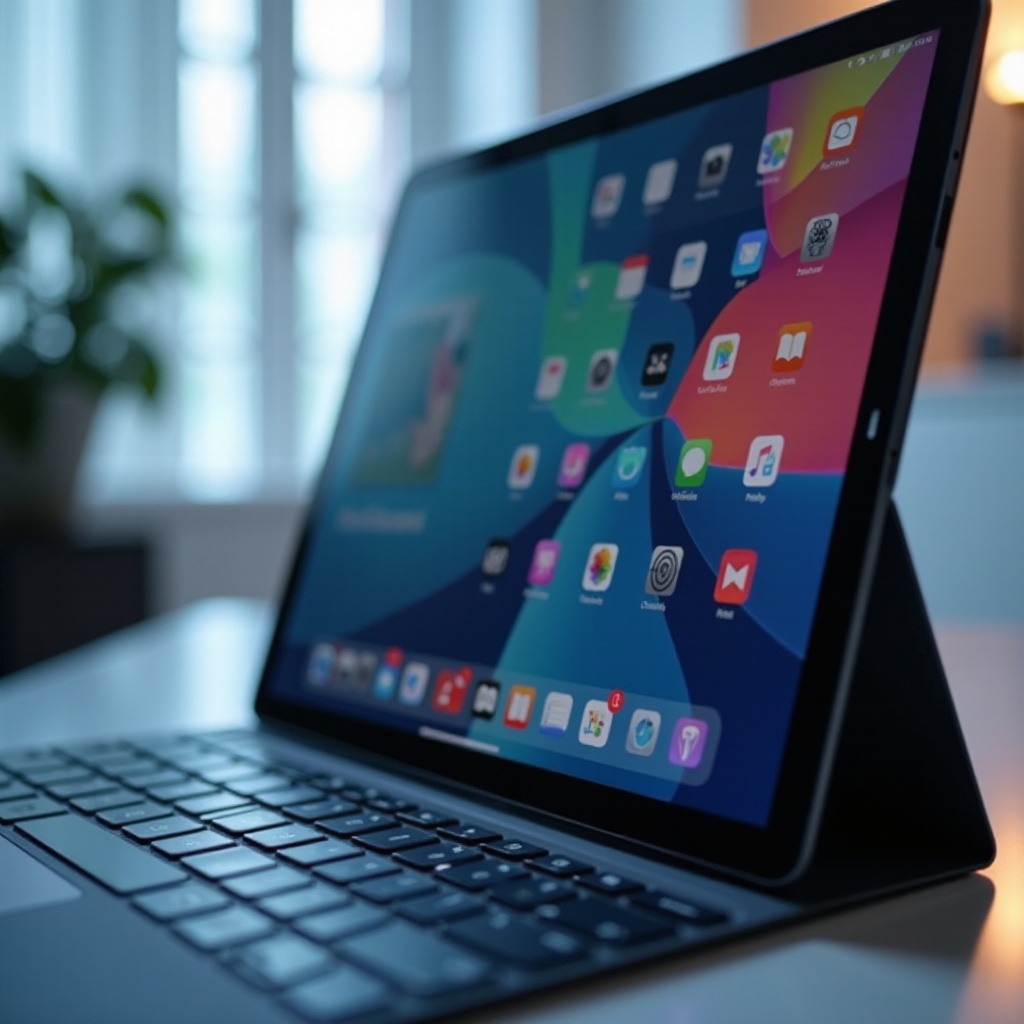
Step-by-Step Guide to Taking Screenshots on Different iPad Models
Capturing a screenshot on an iPad is designed to be quick and user-friendly across all models. Here’s how:
- iPad Pro and iPad Air (Face ID):
- Simultaneously press the Top button and the Volume Up button.
- Quickly release both buttons.
- You’ll notice the screen flash and hear a camera shutter sound, indicating a screenshot has been taken.
-
A thumbnail of your screenshot will appear in the bottom left corner—tap it to edit, or swipe left to dismiss.
-
iPad and iPad Mini (Home Button):
- Press the Top button and the Home button simultaneously.
- Release them immediately after a quick flash and shutter sound.
-
A preview of the screenshot will display on-screen; you can tap to annotate or swipe away.
-
Using AssistiveTouch on Any iPad:
- Enable AssistiveTouch in Settings > Accessibility > Touch.
- Tap the AssistiveTouch menu, select ‘Device,’ choose ‘More,’ and tap ‘Screenshot.
After mastering basic screenshots, you can explore more complex methods tailored to your needs.
Advanced Screenshot Techniques
For users looking to leverage their iPad’s full potential, advanced techniques provide additional functionality:
- Using an Apple Pencil to Capture Screenshots:
- Drag the Apple Pencil from the bottom corner of your screen to invoke the screenshot feature.
-
This method is particularly useful for capturing full-page screenshots in apps that support the Apple Pencil.
-
Taking Full-Page Screenshots in Safari:
- Take a regular screenshot using your device’s method.
- Tap the thumbnail preview, then select the ‘Full Page’ tab at the top.
- Save the full webpage as a PDF, which is perfect for keeping entire articles or documents.
With advanced methods, your screenshot-taking capability extends beyond simple screen captures, enhancing your productivity and creativity.

Editing and Annotating Screenshots
Once you’ve captured a screenshot, the iPad’s editing tools allow you to refine and personalize your images to suit your needs:
- Accessing the Screenshot Editor:
- Tap the screenshot thumbnail to open the editor once it appears.
-
Here, you can crop, rotate, and use drawing tools to highlight key areas.
-
Tools and Features Available:
- Add text and shapes to emphasize points.
- Use the magnification tool to zoom into specific details.
- Utilize the eraser to remove any unwanted annotations.
These features enable you to tailor each screenshot efficiently, personalizing it for business or personal use.
Organizing and Managing Screenshots
Effective management of your screenshots ensures they remain easy to access and do not clutter your library:
- Saving and Creating Albums in Photos:
- By default, screenshots are saved to the Photos app.
-
Create specific albums for screenshots to locate and sort them efficiently.
-
Using Third-Party Apps for Organizing:
- Applications like Evernote or Google Photos offer advanced sorting and tagging, providing an added layer of organization.
Organizing screenshots not only saves time but also enhances your capability to retrieve and utilize these images whenever necessary.
Sharing and Sending Screenshots
Sharing screenshots is simplified with multiple sharing options, making it easy to send and display information:
- Options for Sharing Screenshots:
- Open the screenshot from Photos and tap the share icon.
- Choose to share via email, AirDrop, or directly through messaging or social media apps.
These options underscore the utility of screenshots as a flexible tool for communication and sharing.
Troubleshooting Common Screenshot Issues
Sometimes, taking a screenshot doesn’t go as planned. Here’s how to troubleshoot common problems:
- Screenshot Not Working: Possible Solutions:
- Verify that all screen buttons are functional and not experiencing any mechanical issues.
-
Check for any necessary software updates that might resolve existing bugs.
-
Managing Storage to Avoid Issues:
- Free up space by clearing cache or deleting old, unused photos, allowing room for new screenshots.
Having a troubleshooting plan ensures your iPad operates smoothly, guaranteeing seamless screenshot functionality.
Conclusion
Learning to capture, edit, and share screenshots on your iPad provides a powerful tool for efficiency and creativity. By understanding your iPad model and employing built-in tools, you can fully leverage the device’s screenshot potential. Regular updates ensure continued improvements and solutions, keeping your experience fresh and effective.
Frequently Asked Questions
Can I take a screenshot without using any buttons?
Yes! Use the AssistiveTouch option via Accessibility settings for a button-free method.
How do I take a screenshot with an external keyboard?
Pair your device with a keyboard and press ‘Command + Shift + 3’ for a screenshot.
Are there ways to automatically save screenshots to the cloud?
Enable iCloud Photos in Settings to sync and save screenshots automatically across devices.


0 Comments