
1 May 2026
Post by Dakota
Introduction
Filtering your photos by JPEG format on an iPhone can significantly improve your photo organization. This article will guide you through the process of managing JPEG files effectively with iPhone’s native features and third-party apps. We will also share automation techniques that simplify the process of organizing your photograph collection.
Understanding Photo Formats on iPhone
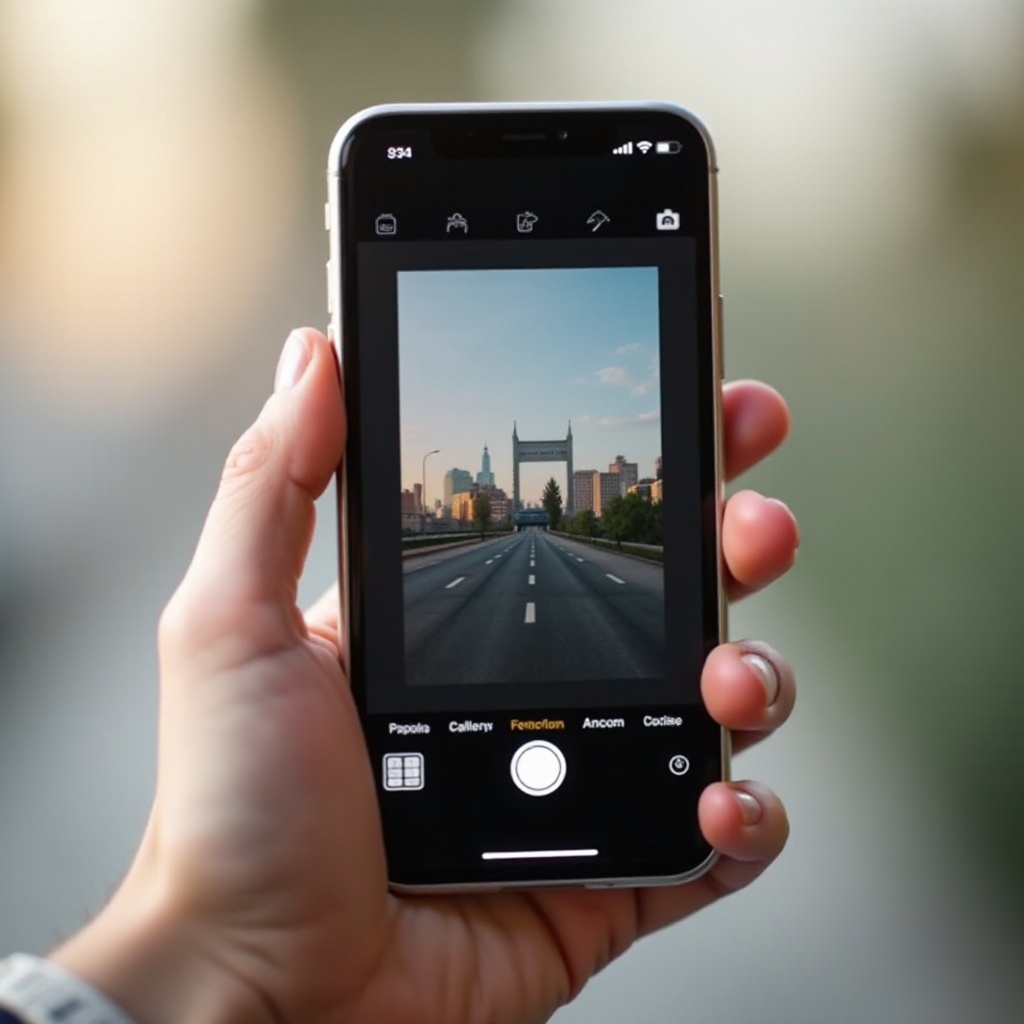
The iPhone can handle several photo formats, most notably JPEG and HEIC. JPEG is well-known for its balance of quality and file size, making it perfect for sharing and storing images. On the other hand, HEIC, optimized for Apple’s ecosystem, saves even more space with minimal quality loss.
Understanding the differences between these formats helps you decide when each is appropriate. By filtering by JPEG, you ensure compatibility across diverse platforms and devices, simplifying tasks like sharing and editing.
JPEG vs. HEIC Formats
JPEG’s widespread acceptance makes it an ideal choice for sharing photos across different devices and platforms. While HEIC offers superior compression, it is primarily suited for Apple’s ecosystem. For users needing seamless interaction with non-Apple devices, filtering JPEGs for storage and sharing purposes is advantageous.
Why File Type Filtering Matters
Efficient file organization by type can streamline your workflow, saving time when searching for particular photos. By focusing on JPEGs, you confine yourself to compatible, manageable files, enhancing your productivity.
Using the Photos App to Filter JPEG Photos
While Apple’s Photos app does not directly filter files by type, it includes several organization tools to help you manage your JPEG photos. With intelligent use of albums and search features, you can efficiently manage your photo library.
Navigating the Photos App
- Open the Photos app on your iPhone.
- Select ‘Albums’ to access your current collections or to create new ones.
- Use the search function to look for metadata associated with JPEG images when the tagging feature is available.
Setting Up Albums for JPEGs
Customize your photo albums:
1. In the ‘Albums’ section, tap the ‘+’ icon to add a new album.
2. Name the album (e.g., ‘JPEG Photos’) and begin adding JPEG images manually.
3. Select photos and use the ‘Add To’ option to move them into the new album.
Leveraging File Type Search
Although the Photos app search tool isn’t specifically designed for file types, leveraging metadata and tags can optimize the process:
1. Use ‘Keywords’ in the search bar to input information like ‘JPEG’.
2. For precise searches, include camera model details related to image capture.
Exploring Third-Party Apps for JPEG Photo Management
Third-party apps introduce an array of advanced features that surpass native iOS abilities. Dive into some applications that make JPEG filtering simple and efficient.
Top Apps for JPEG Filtering
- Google Photos: Renowned for its powerful search and organizational capabilities, which can efficiently track file types.
- Adobe Lightroom: Offers extensive features for photo management and editing.
- Microsoft OneDrive: Excellent for cross-platform syncing and effective file sorting.
Features to Consider in Photo Apps
Consider the following when selecting an app:
– Ability to filter by file format.
– Support for cloud synchronization.
– Metadata tagging for quicker searchability.
– Enhanced privacy settings to secure your photos.
Step-by-Step Guide to Filtering JPEGs
Using Google Photos:
1. Install and open Google Photos, granting access to your photo library if prompted.
2. Utilize the search function to find ‘JPEG’ images using relevant keywords.
3. Select and move JPEG files to designated albums for organization.
Best Practices for Organizing JPEG Photos on iPhone
A well-organized photo library simplifies navigation and enhances usability. Utilize these strategies to maintain an orderly setup.
Developing an Effective Workflow
- Conduct regular reviews to remove any unnecessary files.
- Organize photos into thematically or chronologically meaningful albums upon import.
- Maintain uniform naming conventions to enhance search efficiencies.
Utilizing Folders and Tags
- Implement iOS tags for denoting favorite images or specific themes.
- Create folders for your albums based on events or topics for efficient classification.
- Routinely update and refine folder structures as new images join your collection.
Automating Photo Filtering and Management
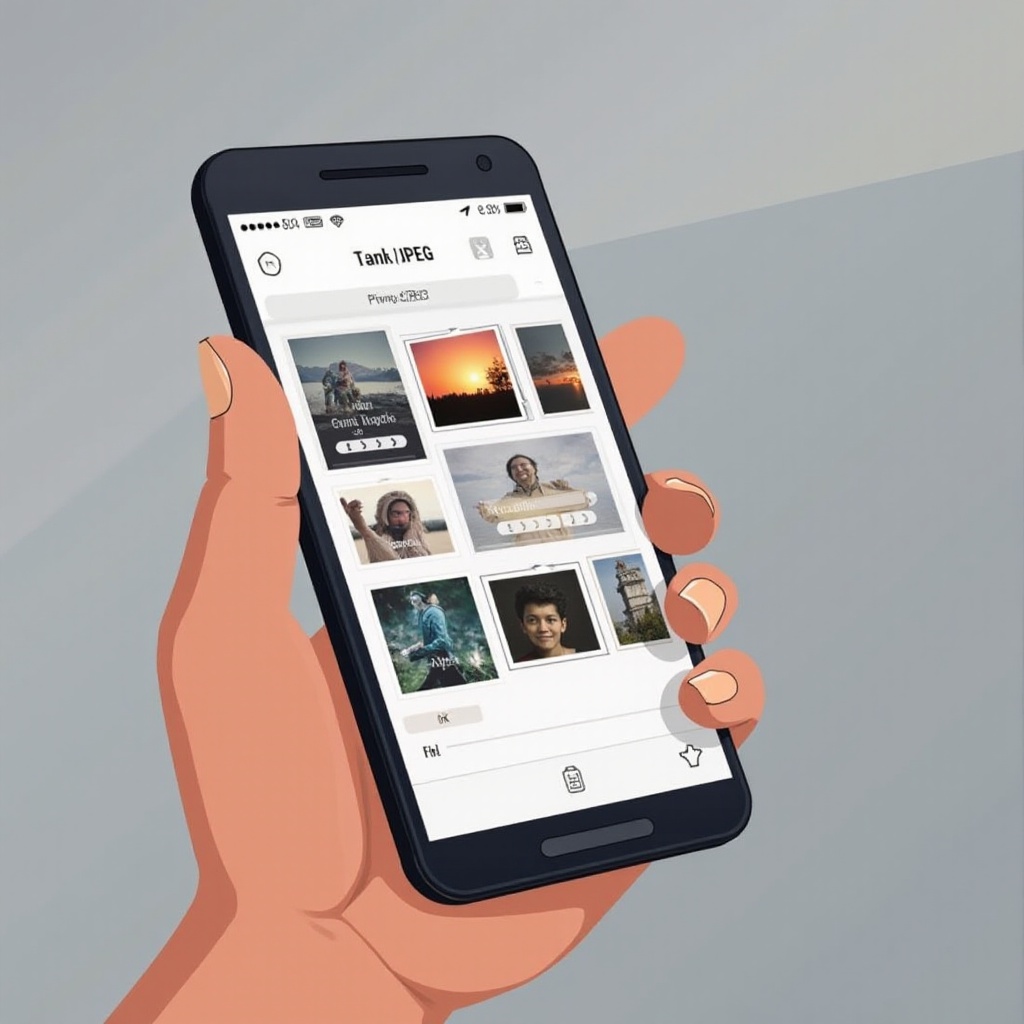
Automation reduces the repetitive nature of photo management, decreasing your manual sorting workload.
Automation Tools Overview
Apple’s Shortcuts and Automator tools are invaluable for setting automated tasks that streamline organization.
Creating Custom Shortcuts
Through the Shortcuts app:
1. Develop a new shortcut using the ‘Find Photos’ action.
2. Specify criteria to isolate JPEGs.
3. Integrate the ‘Add to Album’ action to relocate JPEGs into specialized albums.
Conclusion
Filtering photos by JPEG on an iPhone enhances the effectiveness of your photo library, ensuring it’s accessible and shareable. By utilizing inherent iPhone features alongside third-party apps, you pave the way for streamlined photo management. Regularly implementing these best practices aids in maintaining an efficiently organized collection.
Frequently Asked Questions
How do I find JPEG files on my iPhone?
Utilize the Photos app for general searching or opt for a third-party app like Google Photos for more precise filtering.
Can I convert HEIC photos to JPEG directly on my iPhone?
Yes, transformation is possible using apps like Adobe Lightroom or online conversion services tailored for iOS.
What are the benefits of filtering photos by file type?
Filtering facilitates easier searching, guarantees compatibility across devices, and ensures a consistent editing process.

0 Comments