
26 Dec 2025
Post by Dakota
Introduction
The MacBook Air stands out for its design and performance, winning the hearts of many users. However, a common question is where the built-in microphone is located. Knowing this not only aids in easy functionality but also enhances sound quality during usage. Let us guide you through pinpointing and optimizing your MacBook Air’s microphone.

Understanding MacBook Air Microphone Placement
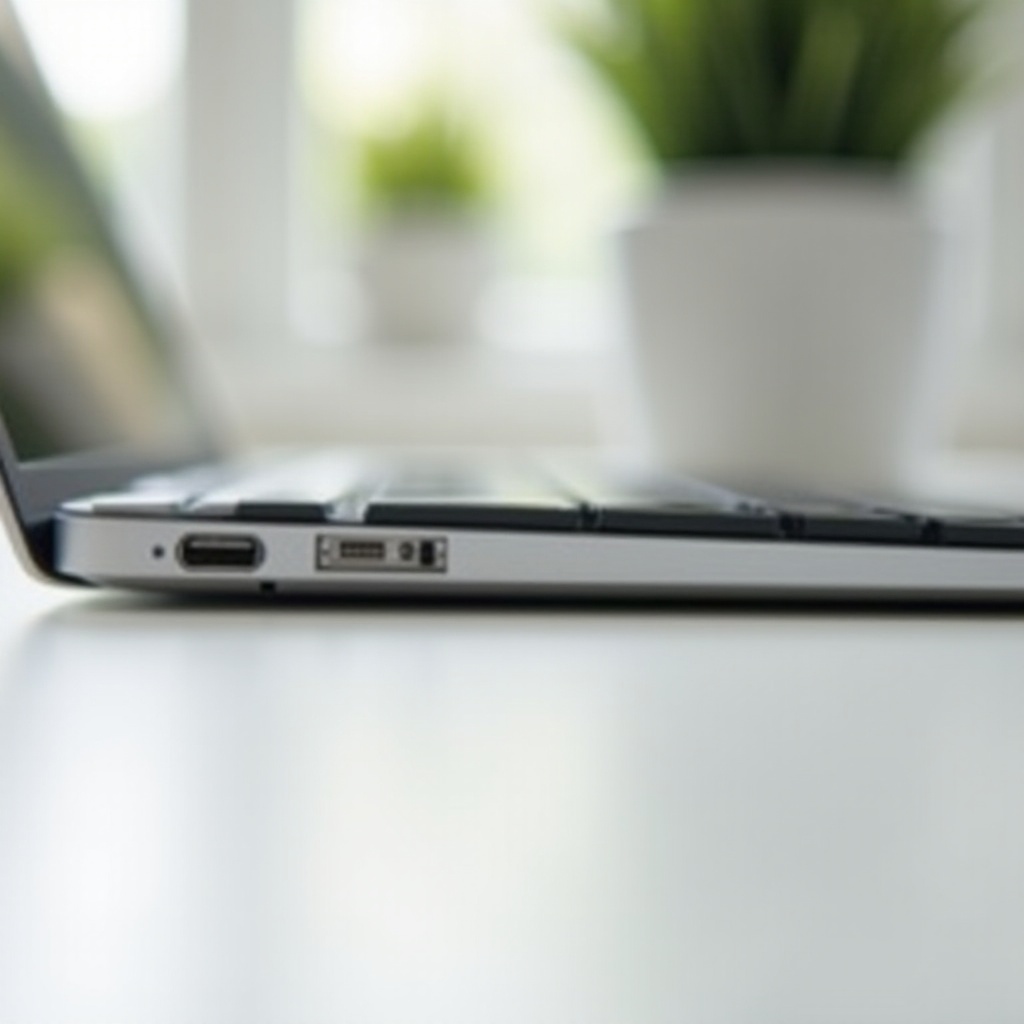
The placement of the microphone in MacBook Air has been carefully engineered to maximize audio capture without disrupting its aesthetic appeal. In models post-2020, you will generally find the microphone near the top left corner or embedded within the hinge. This strategic placement is essential for capturing clear audio, making it perfect for phone calls or video conferences.
Having understood where the microphone is, the next logical step is to ensure it is functioning correctly. Testing your microphone ensures it’s capturing your voice with clarity and precision.

How to Test the Microphone on Your MacBook Air
Ensuring the microphone is operational is crucial for effective communication. Here’s how you can verify its status:
1. Open ‘System Preferences’ by clicking the Apple logo.
2. Select ‘Sound’ and navigate to the ‘Input’ tab where you will choose ‘Internal Microphone’.
3. Speak and observe the input level meter.
Additionally, using the ‘Voice Memos’ app, you can check the quality by recording a short memo. For more detailed analysis, apps like GarageBand offer extensive audio checks. Once you’re confident that the microphone is working well, it’s time to fine-tune its settings for optimal performance.
Optimizing Microphone Settings for Best Performance
Perfecting your microphone’s settings can greatly enhance the audio output for any activity, from meetings to media recording.
- Adjust Input Levels: Make sure the input volume in ‘System Preferences’ is appropriate for your environment.
- Enable Noise Reduction: This feature helps to filter ambient sounds ensuring clearer audio.
By taking these steps, you’re not just ensuring good volume but also high quality in audio capture. However, if something goes awry, troubleshooting can help in identifying and fixing microphone issues, which we will discuss next.
Troubleshooting Common Microphone Issues
Even with the best settings, problems can arise, but many can be quickly resolved with simple troubleshooting.
– First, verify that the correct microphone is selected in your sound settings.
– If it doesn’t capture sound, ensure that no other applications are monopolizing the microphone.
– Clean any debris from the microphone area using a soft brush.
If you experience sound distortion or low quality, restart the Mac or use headphones to prevent any feedback loops. These solutions assist in restoring and maintaining microphone performance.
Conclusion
Pinpointing the microphone on your MacBook Air and optimizing its function paves the way for seamless communication and content creation. You are now equipped to handle any audio input tasks with confidence, knowing your device is set up for excellent sound quality.
Frequently Asked Questions
How do I clean my MacBook Air microphone?
Use a soft brush or compressed air to gently remove any debris from around the microphone area.
Can I use an external microphone with MacBook Air?
Yes, an external microphone can be connected via USB or using a compatible adapter.
Why is my microphone not working during a video call?
Ensure the correct microphone is selected in the app settings and that necessary permissions are granted in the privacy settings.

0 Comments