
30 Jan 2026
Post by Dakota
Connecting your Beats Studio Pro headphones to a laptop is essential for unlocking a superior audio experience, perfect for enjoying music, movies, and calls. This comprehensive guide will walk you through the steps needed to ensure a smooth connection, so you can enjoy the renowned sound quality of Beats.
Introduction
The Beats Studio Pro stands out with its remarkable sound quality and stylish design, making it a popular choice for audio enthusiasts. To fully benefit from these headphones, establishing a proper connection to your laptop is crucial. Incorrect setups can lead to subpar audio quality and connectivity issues, leading to frustration. This guide simplifies the connection process, helping you choose between wireless and wired options.
Understanding Beats Studio Pro Connectivity Options
Your Beats Studio Pro offers flexible connectivity options, accommodating different user preferences and scenarios. Grasping these options is vital for a successful connection.
- Wireless (Bluetooth): This method offers mobility and freedom from cables.
- Wired: A wired connection ensures stable connectivity and consistent audio quality.
Each method has its advantages. Your choice may depend on your laptop’s specifications and personal preference. We will guide you through both methods to find the one that best fits your needs.
Preparing Your Devices
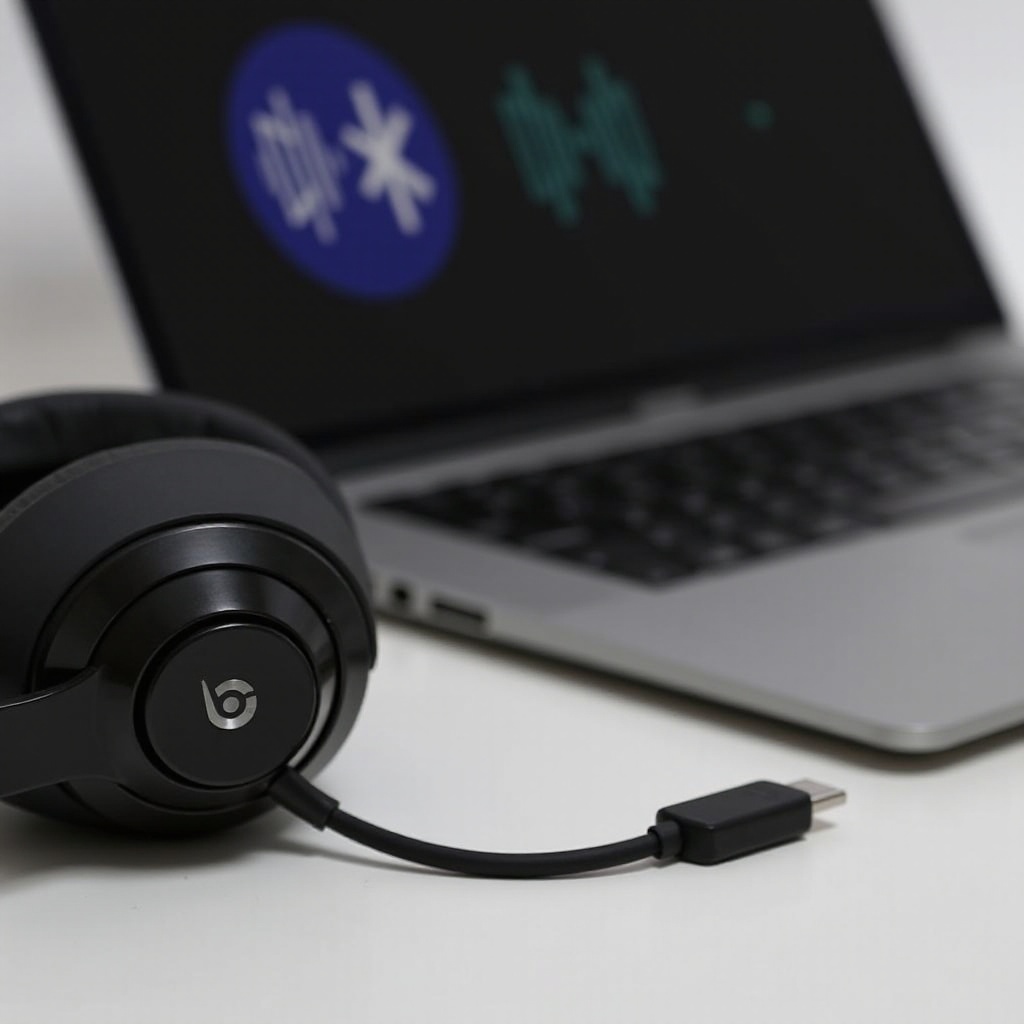
Preparation is key to establishing a smooth connection. Before proceeding, ensure that both your Beats Studio Pro and laptop are ready.
- Power On: Make sure both devices are charged and turned on.
- Software Updates: Update your laptop and headphones with the latest software for optimal compatibility and performance.
- Check Compatibility: Ensure your laptop can support your chosen connection method (Bluetooth or wired).
These steps lay a solid foundation for achieving a seamless connection.
How to Connect Beats Studio Pro via Bluetooth
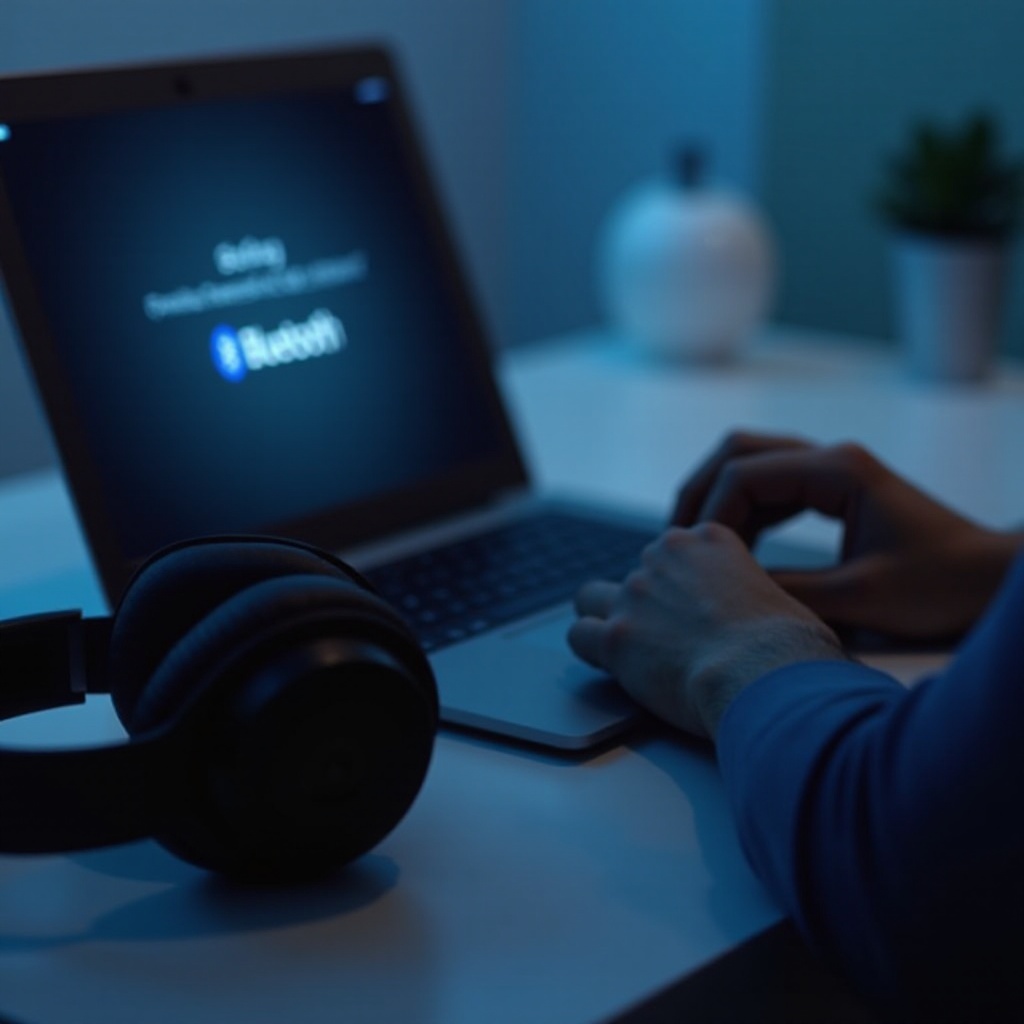
Wireless connections provide flexibility and convenience. Here are the steps to connect your Beats Studio Pro to your laptop using Bluetooth:
- Activate Bluetooth on Your Headphones:
- Power on your Beats Studio Pro.
-
Press and hold the power button until the LED indicator flashes, indicating pairing mode.
-
Enable Bluetooth on Windows:
- Open ‘Settings’ and go to ‘Devices.
- Click on ‘Bluetooth & other devices’ and enable Bluetooth.
-
Select ‘Add Bluetooth or other device,’ then choose your Beats headphones from the list.
-
Enable Bluetooth on Mac:
- Go to ‘System Preferences’ and select ‘Bluetooth.
- Ensure Bluetooth is turned on.
- Find your Beats Studio Pro in the devices list and click ‘Connect.
Following these steps should establish a solid wireless connection, delivering high-quality audio. If you face any issues, proceed to the troubleshooting section.
Establishing a Wired Connection
For those who prefer a consistent and interference-free audio experience, a wired connection is ideal. Here’s how to set it up:
- Gather Necessary Cables:
-
Utilize a 3.5mm audio cable, provided with your Beats Studio Pro.
-
Connect to Your Laptop:
- Insert one end of the audio cable into the headphone jack on your laptop.
- Plug the other end into your Beats Studio Pro.
A wired connection eradicates issues related to battery life and can be more reliable in environments with heavy Bluetooth traffic.
Troubleshooting Common Connection Issues
Occasionally, connection issues might occur despite following the steps. Here are solutions for common problems:
- Bluetooth Interference:
- Ensure no other Bluetooth devices are causing interference.
-
Restart both your laptop and Beats Studio Pro.
-
Wired Connection Problems:
- Confirm that the audio cable is securely connected at both ends.
- Use a different cable if the current one is faulty.
Address these issues to restore your audio experience and maintain a smooth connection.
Enhancing Your Audio Experience
Once connected, optimizing your audio settings can elevate your listening experience.
- Adjust Audio Settings:
- Customize equalizer settings on your laptop for personalized sound.
-
Regularly update audio drivers for optimal performance.
-
Add Sound Enhancements:
- Use Beats Updater for headphone updates.
- Consider third-party apps for more sound customization options.
These enhancements help you get the most out of your Beats Studio Pro, ensuring an exceptional audio journey.
Conclusion
Successfully connecting your Beats Studio Pro to a laptop delivers an unmatched audio experience. Whether you choose a wireless or wired setup, this guide equips you with the necessary knowledge to ensure a flawless connection. Exploring additional settings and enhancements can further augment your audio adventure.
Frequently Asked Questions
Why won’t my Beats Studio Pro connect to my laptop?
Ensure both devices are in pairing mode and Bluetooth is enabled. Check for software updates and restart both devices if issues persist.
Can I connect Beats Studio Pro to multiple devices simultaneously?
No, Beats Studio Pro can only maintain a connection with one device at a time. To connect to a different device, unpair from the current one first.
How do I reset my Beats Studio Pro for troubleshooting purposes?
Hold the power button and the volume down button for 10 seconds until the LED indicator flashes, indicating a reset.
0 Comments